Website Builder
Dynamic Content: External Collections
Dynamic Content: External Collections
External collections can serve as a collection allowing you to create Dynamic Pages (see Dynamic Content: Dynamic Pages) as well as enhance regular pages. Using a collection on a regular page is similar to how Connected Data is used with the site's Business Info (see Dynamic Content: Collections for Regular Pages). For more information on Connected Data with Business Info, see Dynamic Content: Business Info, Text, and Images.
Limitations and Specifications per Collection Type
Internal Collections
Google Sheets
Airtable
External
Collection Number per Site
100
100
100
100
A single collection's data
N/A
20MB
20MB
20MB
Rows
500
N/A
N/A
N/A
Fields (columns)
150
100
100
100
Collection name character limit
50
50
50
50
Field name character limit
50
50
50
50
Page item URL character limit
350
350
350
350
Text field character limit
5000
N/A
N/A
N/A
Inner collection Rows
Not supported
Not supported
Supported
N/A
Image Collection
Supported
N/A
N/A
N/A
Update data
Site/content library publish
Automatically
Automatically every hour
Automatically every hour
Connect to an External Database
To connect to an external database:
-
In the side panel, click CMS.
-
Click Collections.
-
Click + New Collection, and select External Database.
-
Type the Endpoint URL and click Fetch collection.
-
Click Continue.
-
Type a name for the collection.
-
Select the correct data type for each field in the collection.
-
(Optional) Add additional fields.
-
Click Continue.
-
Import the collection.
Set External Collection Sync Frequency
By default, external collection data is synced every hour. However, due to API call limits on different platforms, this can quickly deplete available calls and lead to service disruptions. To prevent this, you can set how often your external collection data is synced. This allows you to ensure you do not exceed the amount of API calls your external collection platform allows.
To set how often external collection data is synced:
-
In the side panel, click CMS.
-
Click Collections and open the desired external collection.
-
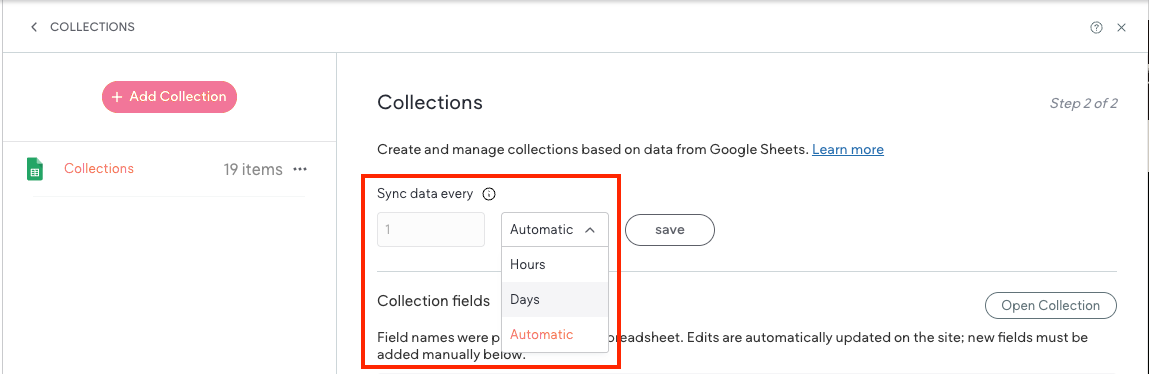
At the top of the external collection under Sync data every, use the arrows to select a number, then use the dropdown menu to select either Hours or Days. By default, Automatic is selected. This is the default and means your collection data is synced every hour.
Note that the sync timing only applies to the current external collection. You must set each external collection sync timing individually.
-
Click Save.
-
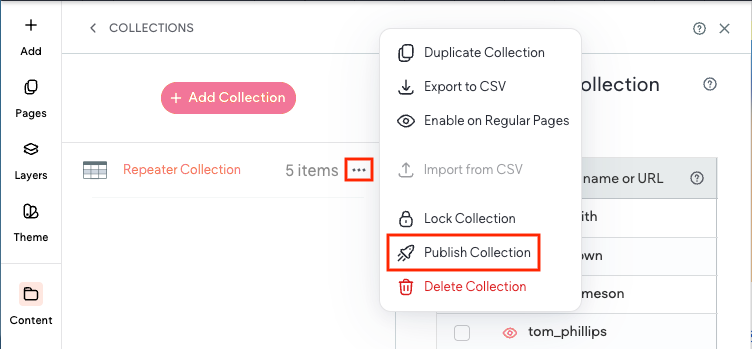
Click the three dot icon next to the collection and select Publish.